Google Analytics Part 2 - Add your tracking code to your Vuhuru player
In this second tutorial you will learn where to put your Google tracking code in your Vuhuru video setting, to begin gathering detailed statistics.
(If you have not already got your Google Analytics tracking code, please see this tutorial.)
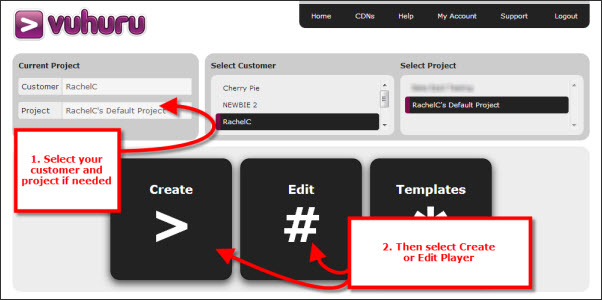
Navigate to either edit player or create player.
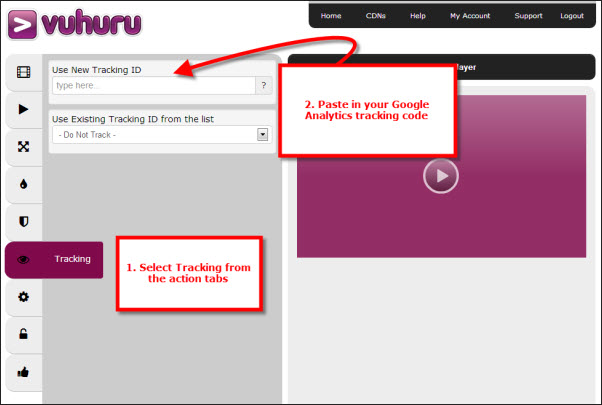
To add your new tracking code, simply paste it into the 'Use New Tracking Code' box.
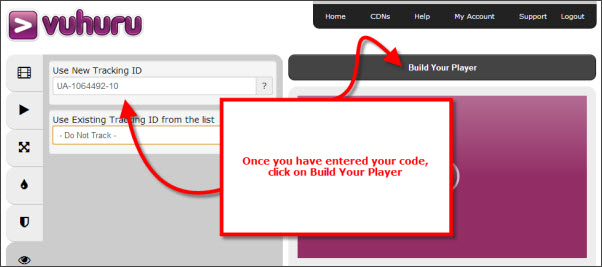
Then click on Build Your Player.
Now you can embed your player as normal, on as many sites as you like. Google will track where your player is embedded and you will be able to break down your statistics by URL, to compare success across different webpages.
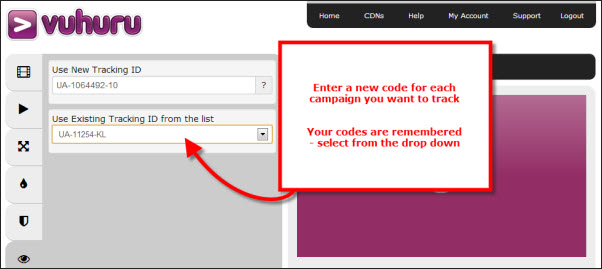
Once you have added the code, you can then re-use it, or add further tracking codes.
You may want to re-use a code across a website, for many videos; or re-use a code for a series of videos that you will embed on many sites. Once the data is gathered you will access statistics from a single tracking code, so use the codes to gather data you would like to aggregate or compare.
To re-use a code, you can select it from the drop-down box, and each code you use will be remembered by the Vuhuru system.
To turn off tracking, just select "Do Not Track" from the drop down box - and your video will no longer be tracked. You will need to re-embed the player on all sites where it has been embedded.
Now that you have added your tracking code to your Vuhuru video player, you can begin checking on your statistics. Follow this tutorial to learn how to access your Google Analytics.
|