Vuhuru

Rackspace: the signing up process

RackSpace are enthusiastic about customer support - with their 'Fanatical Support' ethos - if you are having issues setting up your account, all you have to do is click on a button to start a live web chat, or give them a call

Please note 2 things

1 - RackSpace offer a US and a UK service - these are classed as separate services with different billing charges - so make sure you sign up to the correct one

2 - RackSpace currently does not offer RTMP streaming

Here is our guide to the sign up process for RackSpace (the US service)


Step 1
Go to www.RackSpace.com and choose either US or UK version of the site (depending on whether you want to be charged in US dollars or GB pounds.

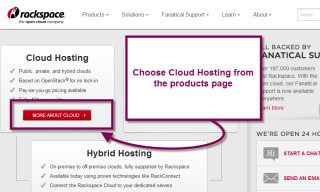
From their products, choose Cloud Hosting.

Then click on Sign Up at the bottom of the page.


Step 2
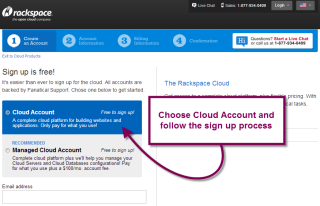
Make sure you have selected a Cloud Hosting account and begin entering your details.

Step 3
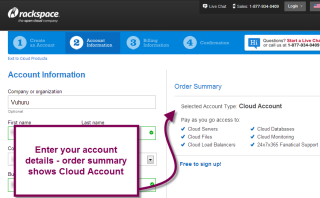
The Order Summary shows your Cloud Hosting option.

Enter your details and your billing details - you will be charged on a pay as you go basis for the hosting and bandwidth that you use.

Step 4
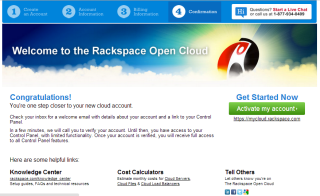
When you have completed the sign up process, you receive a confirmation message.

You will also be sent a confirmation email with your user details.

You may have to wait 30-40 minutes for your API key to be generated - which allows you to add your account to MyCDNs in Vuhuru and to CyberDuck or Cloudberry uploaders.

Step 5
**Special step for RackSpace accounts**

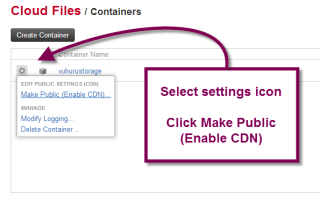
For RackSpace accounts you need to Enable CDN for any folders you wish to use for video/audio files.

Go to your account and click on File in the header.

Then create your folder (or choose a folder for existing accounts)

Click on the settings cog icon.

Choose Make Public (Enable CDN).

Your account is ready to go!

© 2012 - 2026 Vuhuru Ltd. All Rights Reserved. Reproduction without permission prohibited.
Vuhuru 1-003