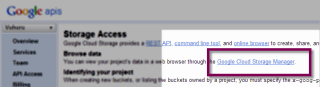
Open the Google Cloud Storage Manager by clicking on the link in your Google account
To find it, make sure you are signed into your Google account and go to https://cloud.google.com/console
Click on your project name, then select Cloud Storage from the product list
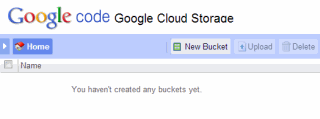
Once you are in the storage manager, you need to create a folder to upload your files into
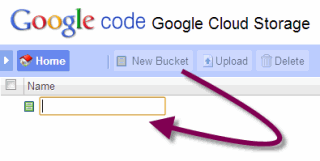
Click on New Bucket and enter a name for your bucket
Once created, click on your bucket name to enter it
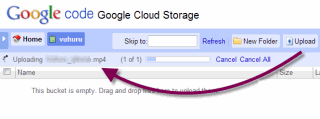
Then click on Upload and select the file from your computer
Click Upload to begin transferring your media
You can also drag and drop your file into the pane to begin uploading
The progress bar shows the current status of the upload
Once the upload has completed, you can see the new file in your account
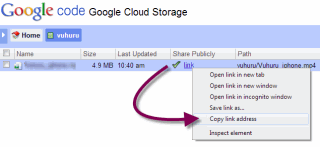
To grab the file location of your video, just right click the blue link
Select 'Copy Link Location' or 'Copy Link Address' or similar option
Paste the link into Vuhuru Video Dashboad to create your player
Alternatively, link your account directly to Vuhuru using MyCDNs