Vuhuru

How to create and use a template

If you want to use the same settings over and over - it can be laborious just remembering them let alone applying them every time to each player you create. Instead you can use Vuhuru to create a template using your preferred settings, and then simply select that template when creating a player - instantly applying all your desired settings.

(You can also apply a template to existing players - great if you want to update a whole bunch of players quickly. Learn more about updating a player to use a different template here. )


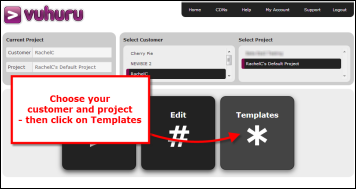
Step 1 - Click on Templates

Select the project and customer you want.

Then click on the large Templates button on the home page.


Step 2 - Name your template

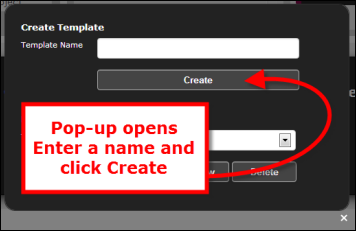
The templates pop-up will open.

Enter a name for your new template and click Create.

Step 3 - Apply your settings

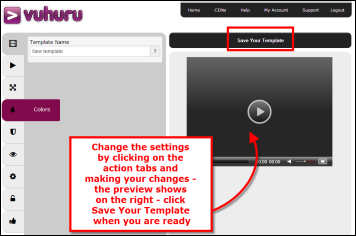
Choose all of the settings that you would like to be applied to your players by making changes as normal ie. when creating a player.

You can preview how your template will look on the right hand side of the page.

Click Save Your Template when you have made all your changes.

You will be taken to the full preview of your template.

Step 4 - Create a player with your template

Now that you have created your template, you will want to use it - and create a player in just one click!

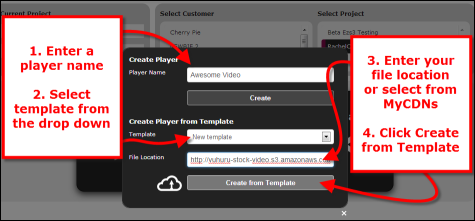
To use your template, go to Create Player in the home page.

In the pop up that appears:- 

1. Give your player a name
2. Paste in your video file location
3. Select your template from the drop down list
4. Finally, click on Create from Template


Step 5 - Preview player and embed

Your player is created instantly - using all of the settings that you want and applied when creating the template.

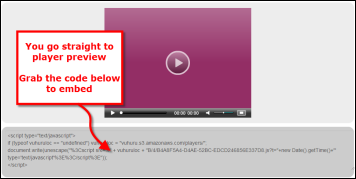
You are immediately taken to a preview of your player.

Grab the code below to embed the player on your website.

© 2012 - 2026 Vuhuru Ltd. All Rights Reserved. Reproduction without permission prohibited.
Vuhuru 1-003