Begin by downloading the Drupal plugin from the My Plugins page.
Make sure that you unzip the folder before beginning the upload.
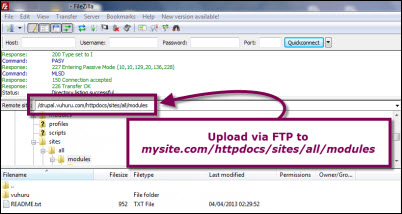
Open an FTP client such as Filezilla.
If you are unsure on using FTP, please get your web support to help.
Upload the unzipped folder to mysite.com/httpdocs/sites/all/modules.
Once uploaded, you need to activate the Drupal plugin.
Login as an Administrator to your Drupal blog.
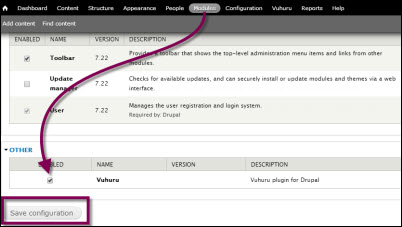
Click on Modules at the top and then check the box next to Vuhuru.
Then click on Save Configuration.
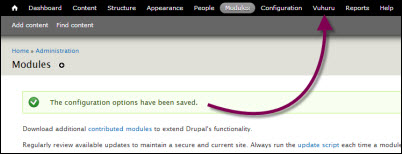
Drupal shows you a message that the configuration has been saved and that the plugin has been activated.
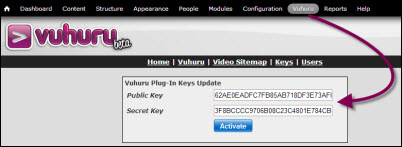
A new link for the plugin appears in the top navigation bar of your Drupal control panel.
Now you need to generate keys at Vuhuru.com
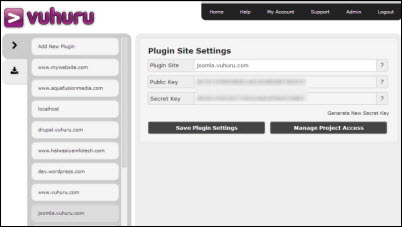
Generate a pair of keys for your plugin site (guide here).
Paste your new key pair into the fields and click Activate.
If you get an error message when activating your plugin - please see this guide on key error messages.
Success! You have activated your plugin and now you can create, embed and manage players directly in your Drupal admin panel!
Learn more about creating, embedding and managing players from your Joomla blog here.