Find the file location of your uploaded MP4 video so you can create a Vuhuru player
**Want to know the easy way? Add RackSpace to MyCDNs**
Creating a folder at RackSpace is straightforward
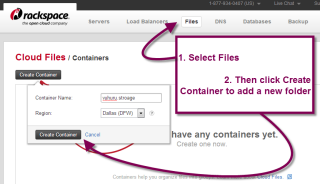
Firstly, log into your account and select Files from the header
Then click Create Container - choose a name and location for your folder
Click Create Container again to launch your folder
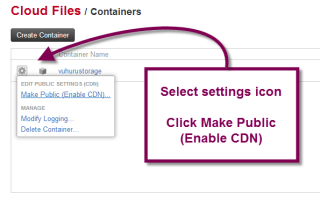
Your folder will not allow video playback if you don't enable it as a CDN
To do this just click on the settings cog icon next to your folder name
Choose Make Public (Enable CDN) from the drop down list
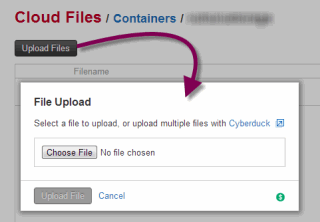
To upload a file, click on your new folder
An upload files button appears
Click on it to open the uploader and select a file from your computer
Uploading should be fairly quick, depending on your internet speed
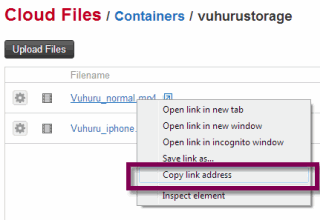
To get the file location, just right click on your uploaded file
Choose 'Copy Link Address' or 'Copy Link' (depending on your computer)
Paste the link into the Vuhuru Video Dashboard
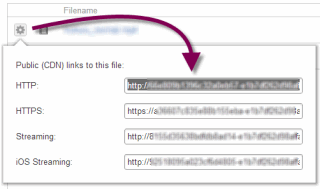
To get a specific file location, i.e. a secure HTTPS link, click on the settings icon next to your file name
Select View All Links
Choose the link you want from the listed options