Vuhuru

My Plugins - Uploading your plugin to your website

You can save tons of time by uploading a plugin to your MemberGate or blog website. This allows you to create, manage and embed players in your own website - without having to go to Vuhuru. Follow the steps below to download, upload and activate a plugin on your website.


Step 1

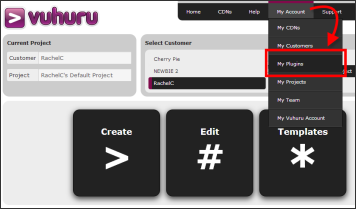
The first step is to navigate to the plugin which you can find under My Account and then My Plugins.


Step 2

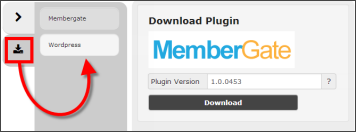
Click on the Download Plugins tab.

Click on the plugin type you want to download.

And then click on the Download button.

Step 3

Option 1 - Blog style website (e.g. WordPress)

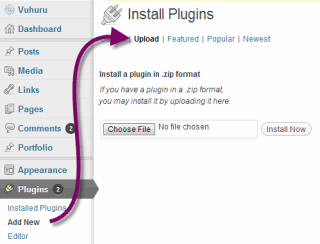
Go to the admin section of your blog.

Choose plugins and then select Upload plugin.

Upload the entire zipped folder that you downloaded in Step 2.

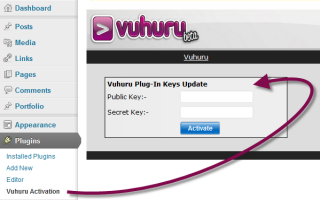
For some blog sites (i.e. WordPress) you will then need to activate your plugin, follow this guide.


Step 4

Option 2 - MemberGate website

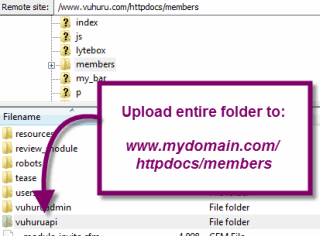
Open a FTP client such as Filezilla.

Use FTP to upload the entire folder to this directory: www.mydomain.com/httpdocs/public

You will not need to activate the plugin, just paste in your keys, shown in the step below.

Step 5

Once you have uploaded (and activated if necessary) your plugin, you need to generate a pair of keys for it to work.

Please see this guide on generating keys for plugins.

© 2012 - 2026 Vuhuru Ltd. All Rights Reserved. Reproduction without permission prohibited.
Vuhuru 1-003